Customizing the components: slots
The parts of the ReportDesigner, FieldList, FilterBar, FilterEditor and DashboardView are slots: named places
where an application adds its own content (before or after the default content), replaces it, or hides it.
<bi:ReportDesigner Context="{Binding Context}">
    <bi:Slots.Items>
        <!-- Under the preview -->
        <bi:Slot Name="{x:Static bi:ReportDesignerSlots.Preview}">
            <Button Content="Publish" Command="{Binding DataContext.PublishCommand, RelativeSource={RelativeSource AncestorType=Window}}" />
        </bi:Slot>
        <bi:Slot Name="{x:Static bi:ReportDesignerSlots.Title}" Mode="Before"><TextBlock Text="Title:" /></bi:Slot>
        <bi:Slot Name="{x:Static bi:ReportDesignerSlots.FiltersShelf}" Mode="Hide" />
    </bi:Slots.Items>
</bi:ReportDesigner>
Slots.Add(designer, ReportDesignerSlots.Header, exportButton);              // after the default content
Slots.Add(designer, ReportDesignerSlots.Fields, help, SlotMode.Before);      // above the field list
Slots.Add(filterBar, FilterBarSlots.AddButton, myAddButton, SlotMode.Replace);
Slots.Hide(designer, ReportDesignerSlots.FieldPanel);
Modes
SlotMode |
Your content goes |
|---|---|
After (default) |
After the default content: on its right, or below it in a vertical slot (Fields, Shelves, Preview) |
Before |
Before it: on its left, or above it |
Replace |
Instead of it |
Hide |
Nowhere: the part disappears |
Several slots with the same name show in declaration order; the last Replace or Hide wins.
Names
| Component | ...Slots |
|---|---|
ReportDesigner |
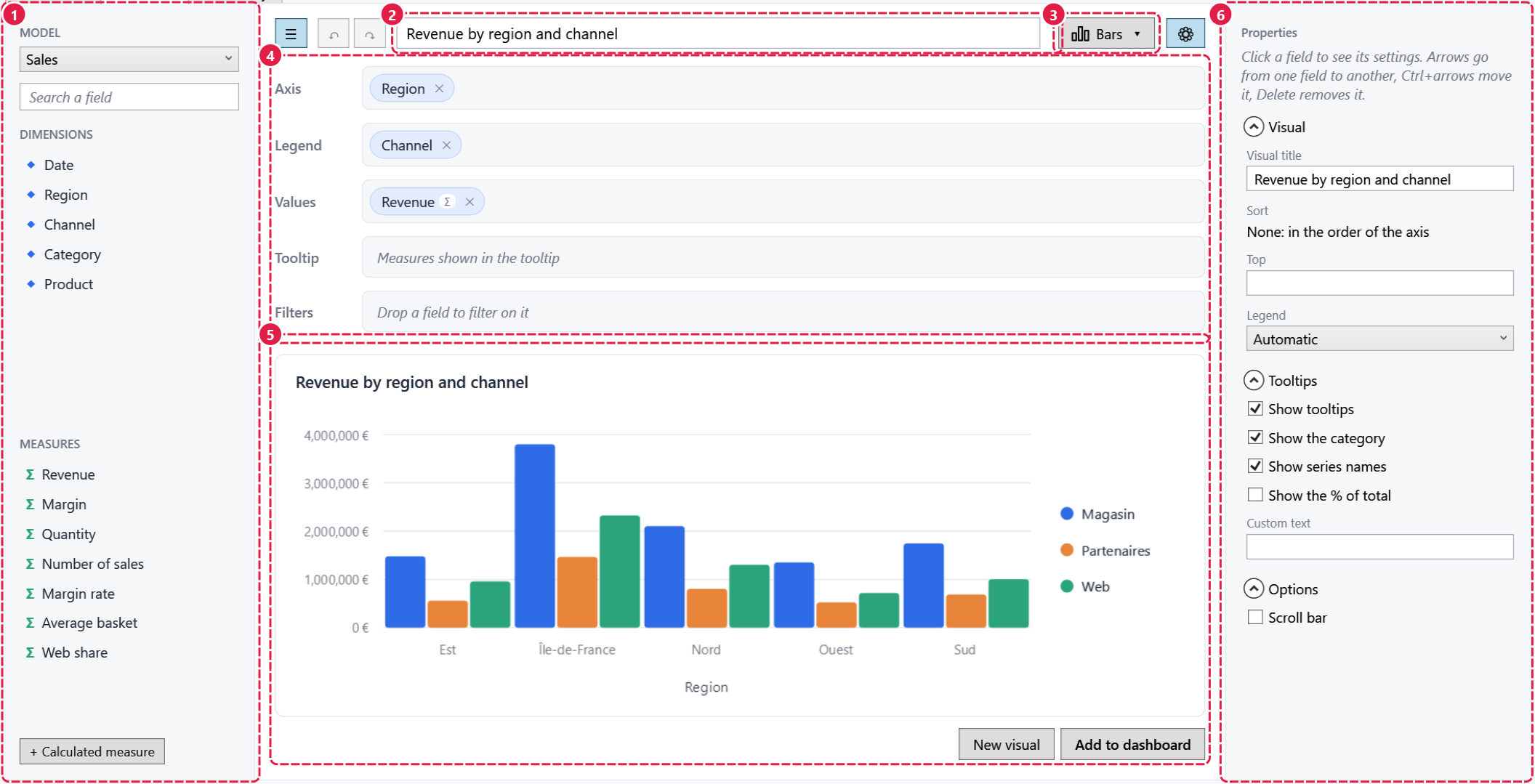
FieldPanel, Fields, Header (with Title, VisualTypes), Shelves (with AxisShelf, LegendShelf, ValuesShelf, TooltipShelf, FiltersShelf), Preview, Properties |
FieldList |
Model, Search, Dimensions, Measures, AddMeasureButton |
FilterBar |
Filters, Label, Slicer, AddButton, Selection |
FilterEditor |
Values, Period |
DashboardView |
Body, ItemContent, EmptyItemChoices, ItemToolbar |
The band menu of a dashboard is a menu, not a slot: change it in BandMenuBehavior.MenuOpening.
Data context
Your content takes the data context of the place it shows in:
| Where | Data context |
|---|---|
| The designer | Its DesignerViewModel ({Binding Visual.Title}...) |
| The filter bar, the field list | The application's |
FilterBarSlots.Slicer |
The SlicerViewModel of a global filter |
| The filter editor | The FilterItemViewModel |
| The dashboard item slots | The DashboardItem (DashboardCommands act on it) |
To reach your window's view-model from the designer: {Binding DataContext.MyCommand, RelativeSource={RelativeSource AncestorType=Window}}.
Repeated slots take a template
An element can only be shown once. A slot shown several times (FilterBarSlots.Slicer once per global filter, the
dashboard item slots once per item, slots declared for several components) takes a ContentTemplate, applied to the
data context of each place:
Slots.AddTemplate(dashboard, DashboardSlots.ItemToolbar, (DataTemplate)FindResource("ExportButton"));
Inheritance
Slots.Items is inherited: slots declared on a window or a panel apply to every component in it, and the nearest
declaration replaces the others. The designer opened to edit a dashboard visual takes the slots of the dashboard.
Your own templates
The components are lookless controls. Their default templates (Themes/*.xaml of EasyBI.Wpf) are built from
SlotHosts (<bi:SlotHost Slot="..." Orientation="Vertical"> with the default content inside), so a template of
yours keeps the slots it hosts. A template works with the components' read-only properties and commands:
| Component | For templates |
|---|---|
ReportDesigner |
Its ViewModel (DesignerViewModel), the template's data context |
FieldList |
ModelOptions, Dimensions, Measures, CanAddMeasure, AddMeasureCommand, EditMeasureCommand, DeleteMeasureCommand, ResetMeasureCommand (with ModelField.IsEditable, IsReportMeasure, IsRedefined) |
FilterBar |
Slicers, SelectionDescription, AddFilterCommand, RemoveFilterCommand (on the slicer of its data context), ClearSelectionCommand |
DashboardView |
Panel, DashboardCommands |