The designer
The ReportDesigner lets end users build a visual by themselves: they drag fields onto wells, pick a visual type and
see the result live.
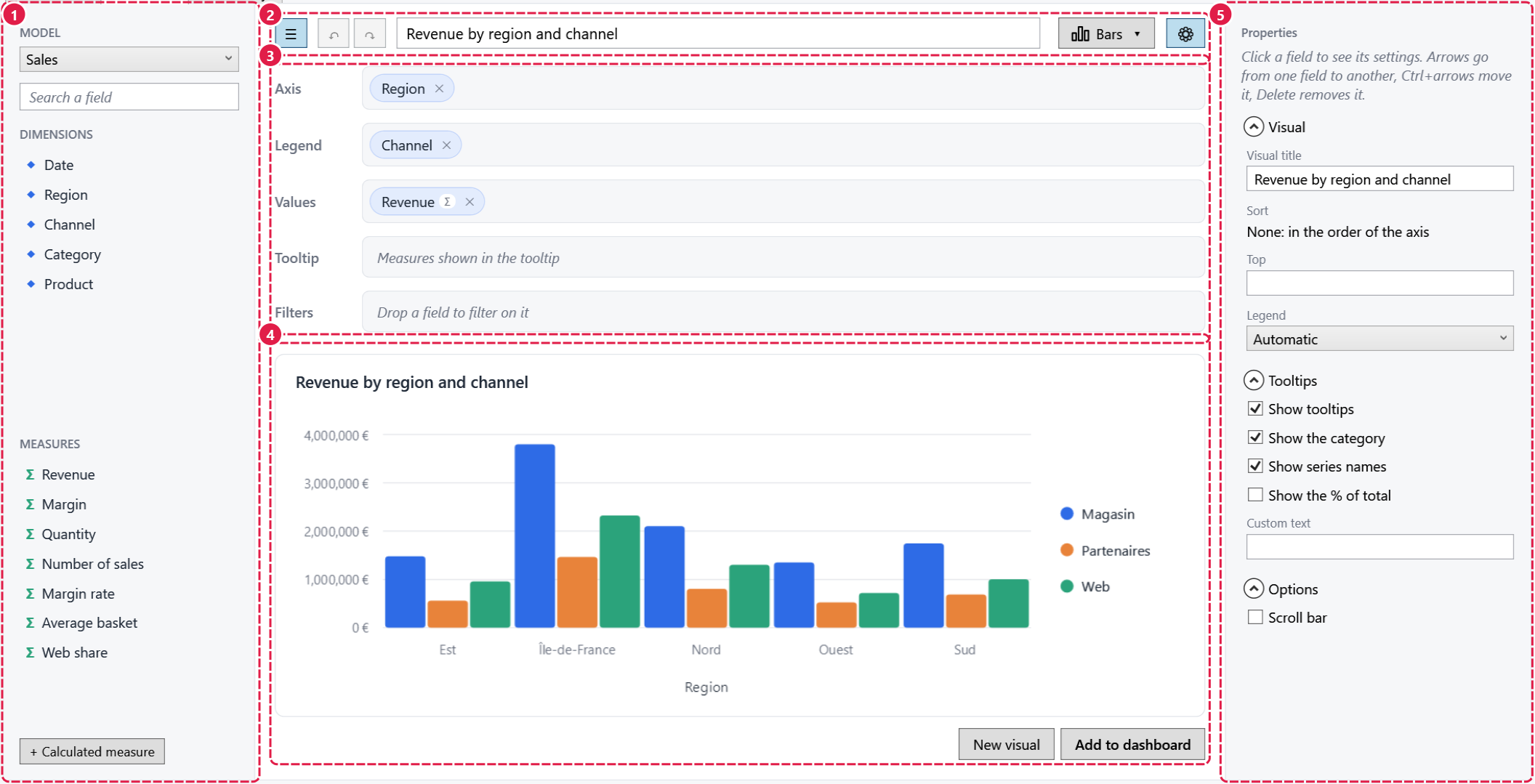
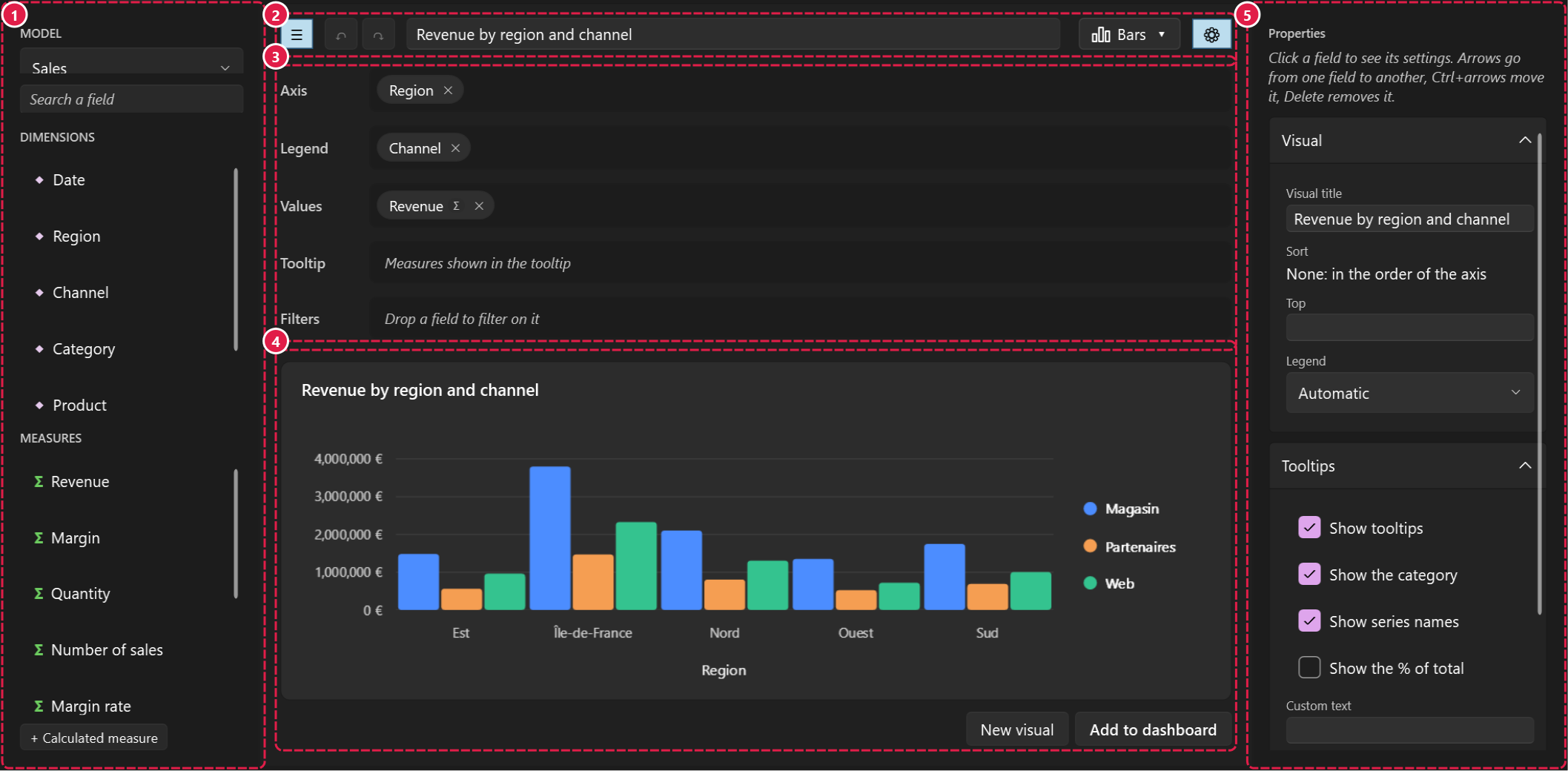
| Zone | What the end user does there | |
|---|---|---|
| 1 | Fields | Picks the model, searches a field, drags it (or double-clicks it). Creates calculated measures. |
| 2 | Header | Folds the field panel, undoes and redoes, names the visual, opens the gallery of types, folds the properties panel. |
| 3 | Wells | Drops fields: axis, legend, values, tooltip, filters. Their names and limits follow the type. |
| 4 | Preview | Sees the visual as it will show, with the real data. |
| 5 | Properties | Sets the selected chip (aggregation, grain, format...), or the visual when no chip is selected. |
Show it
The designer needs an EasyBIContext (your models and renderers). Bind the visual being designed to keep what the end
user builds: Visual is two-way.
- Two-way by default: every change of the end user comes back into
EditedVisual.
No view-model is needed. The sample's XAML only tab shows a designer declared without any code.
Show the result elsewhere
Visual is a plain VisualDefinition: bind it to a VisualView to show the visual being designed somewhere else,
or save it as JSON.
Save what the end user built
Visual is ready to store: add it to a ReportDefinition, or serialize it on its own.
if (VisualValidator.Validate(designer.Visual!, context.VisualTypes) is { } problem)
{
    MessageBox.Show(problem);            // (1)!
    return;
}
report = report with { Visuals = [.. report.Visuals, designer.Visual!] };
designer.Visual = null;                  // (2)!
- A visual can be incomplete while it is designed: a pie without a category, a chart without a value...
- Starts the next visual.
Drive it from your buttons
Undo and Redo are WPF commands of the control: point a button at it.
<Button Content="Undo" Command="Undo" CommandTarget="{Binding ElementName=Designer}" />
<Button Content="Redo" Command="Redo" CommandTarget="{Binding ElementName=Designer}" />
| Property | |
|---|---|
Context |
The models and renderers the designer offers. Changing it starts a new designer state. |
Visual |
The visual being designed (two-way). null: a new visual. |
Rules |
What the end user may change: see Rules. |
IsFieldPanelOpen, IsPropertiesPanelOpen |
Whether the side panels are shown (two-way). Selecting a chip opens the properties. |
ViewModel |
The designer's state (DesignerViewModel, read-only): selection, undo history, properties panel. |
The view-model, for advanced use
The control creates a DesignerViewModel for its Context and gives it to its template as data context, so the
content of its slots binds to it too. Reach it through designer.ViewModel
for what the control does not expose: SelectedItem, CanUndo, Refusal, PropertiesBuilding...
Next
-
What end users do: the gallery, the wells, the chips, the keyboard.
-
Lock the type, the fields, or anything of the visual.
-
Your own buttons, properties, editors and icons.