Layout
The layout says where each visual goes. It is a WPF matter: it lives in the DashboardDocument, next to the report,
never in the report itself.
Bands
A dashboard is a stack of bands, each with a mode:
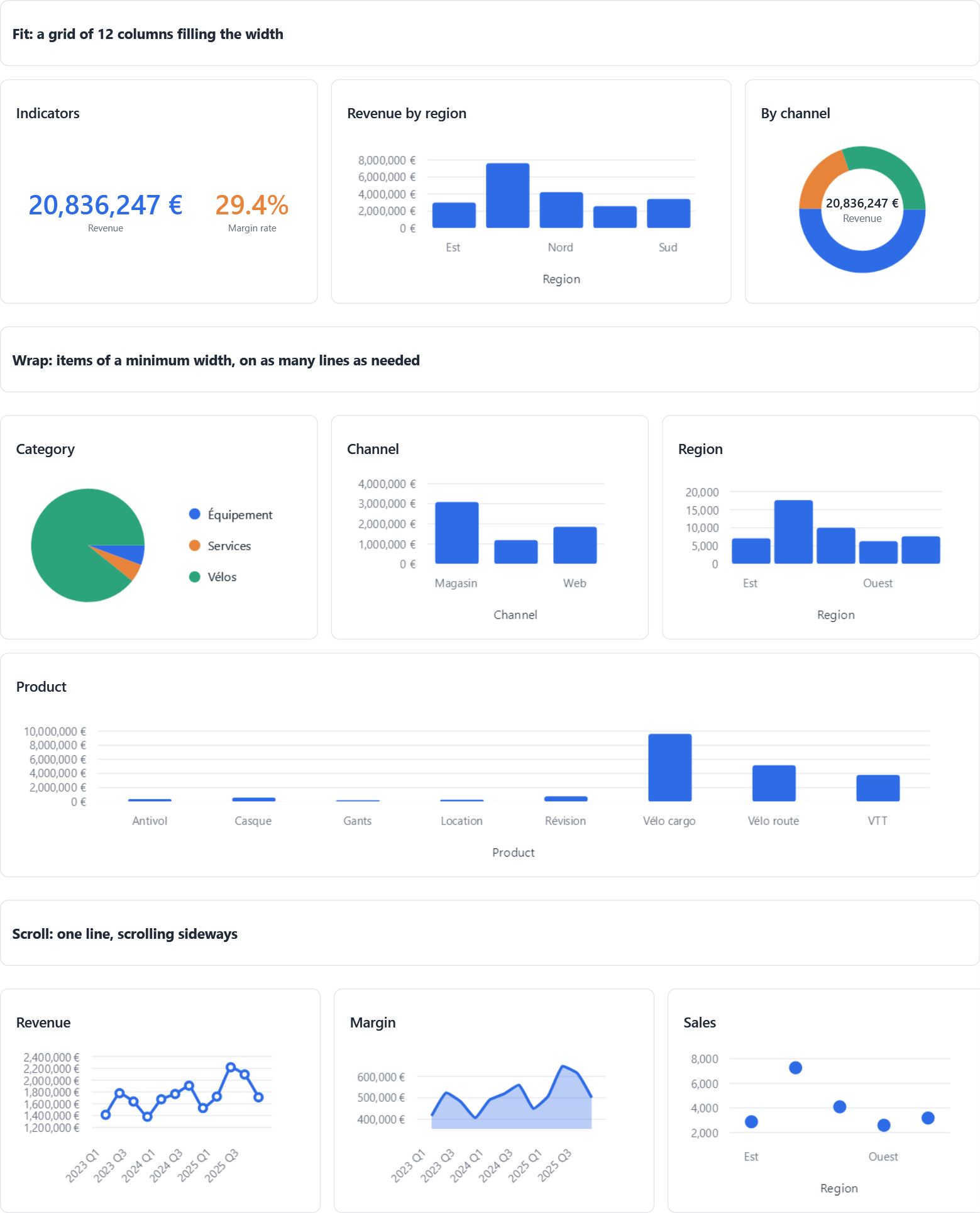
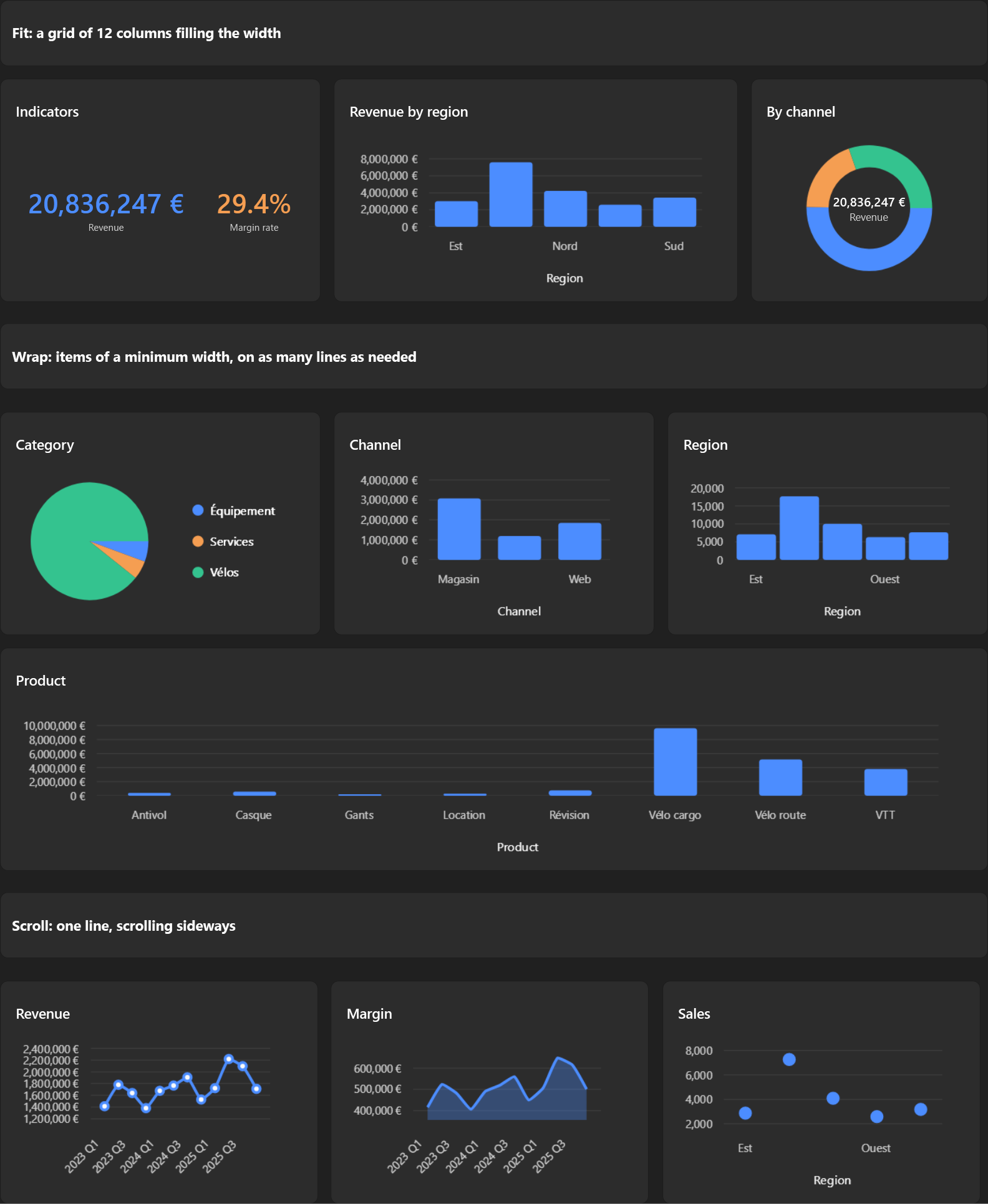
| Mode | Items | Size of an item |
|---|---|---|
BandMode.Fit |
A grid of 12 columns filling the width, in lines | ColumnSpan in columns, RowSpan in rows |
BandMode.Wrap |
Side by side, breaking lines when the next one does not fit, then sharing what is left on each line | At least DashboardPanel.MinItemWidth, or Width in pixels |
BandMode.Scroll |
On one line, scrolling sideways when they do not fit | The same as Wrap |
Items are greedy
An item without a size shares the room its neighbours leave: a dashboard never has a gap. An item with a size keeps it, the others take the rest. When every item of a line has a size, the room left is a free space, which the dashboard offers to fill.
Lines and containers
A Fit band is a stack of lines. A line is an item, or a container of items and containers:
LayoutNode.Row(...): side by side;LayoutNode.Column(...): stacked.
Along a container, items with a size keep it and the others share the rest; across it, every child takes the whole
room. An item with a RowSpan sets the height of its line, and the items next to it stretch.
new DashboardLayoutDefinition
{
    Bands =
    [
        new BandLayout
        {
            Items =
            [
                new LayoutNode { VisualId = title.Id, RowSpan = 1 },                         // (1)!
                LayoutNode.Row(
                    new LayoutNode { VisualId = map.Id, ColumnSpan = 6, RowSpan = 6 },        // (2)!
                    LayoutNode.Column(LayoutNode.Item(sales.Id), LayoutNode.Item(margin.Id))), // (3)!
            ],
        },
        new BandLayout
        {
            Mode = BandMode.Scroll,
            Items = [LayoutNode.Item(a.Id), new LayoutNode { VisualId = b.Id, Width = 360 }],
        },
    ],
};
- A whole line, one row high.
- The left half, six rows high.
- Two items stacked beside it, sharing its height.
DashboardLayoutDefinition |
Default |
|---|---|
Columns |
12 |
RowHeight |
110 pixels |
Narrow screens
On a narrow dashboard, Fit bands show fewer columns: one under 600 pixels, six under 960 (ColumnTier.Defaults, set
with DashboardPanel.ColumnTiers).
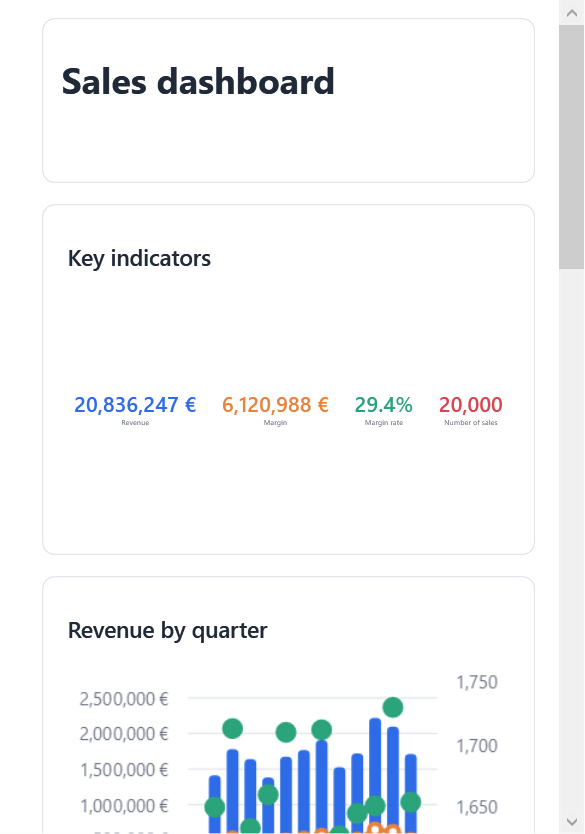
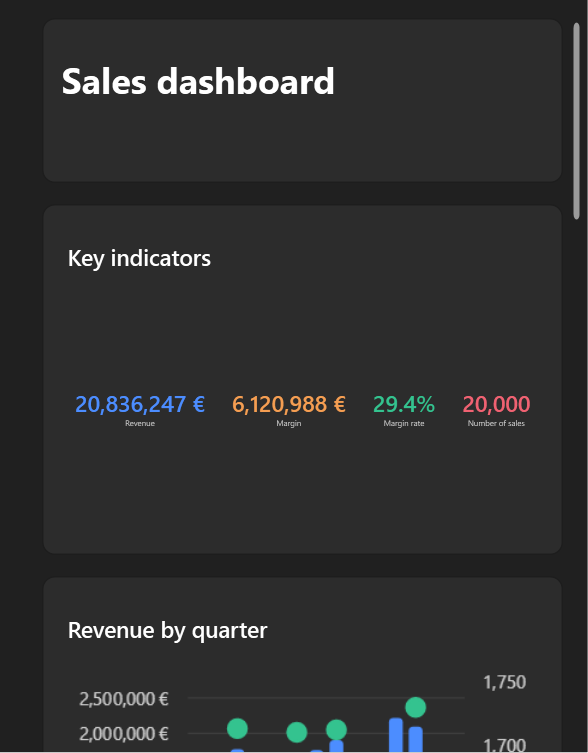
Spans are scaled to the tier, and a line whose items would get less than 3 columns each is broken into several lines. Only the display adapts: the saved layout does not change, and a resize made on a narrow screen is saved in the layout's columns.
Change it from code
DashboardView has methods that keep the layout consistent and make one undo step each: AddNextTo, AddIn (a free
space), InsertLine, SetAutoSize, SetVisual, InsertBand, RemoveBand, SetBandMode. Group several into one
step with BeginEdit:
using (var edit = dashboard.BeginEdit())
{
    var item = dashboard.AddNextTo(anchor, ItemSide.Right);
    dashboard.SetVisual(item, visual);
    edit.Commit();
}
Lower levels
DashboardLayout(static) changes the layout of anyDashboardPanel:AddNextTo,MoveNextTo,InsertAt,MoveTo,Resize,ResizeWidth,SetAuto,Remove,InsertBand,RemoveBand,SetBandMode,Update,Capture,GetLayout,SetLayout.DashboardLayoutEngineholds the rules as pure functions on the records, usable without any UI.DashboardPanelshows a layout on its own (Layout, children matched byDashboardPanel.ItemId), and exposes hit tests for interactions:EdgeAt,FlowIndexAt,FreeSpaces,CaptureGeometry. The geometry is a pure function,BandArrangement.Arrange.