Rules
Rules decide what the end user may change in the visual: keep its type, its fields, a maximum of measures, or anything else. A refused change does not happen, and the designer says why.
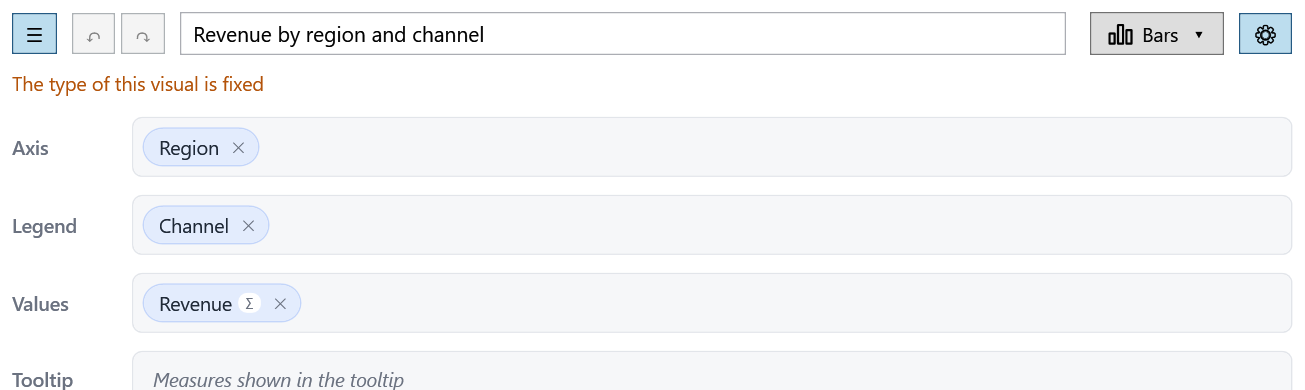
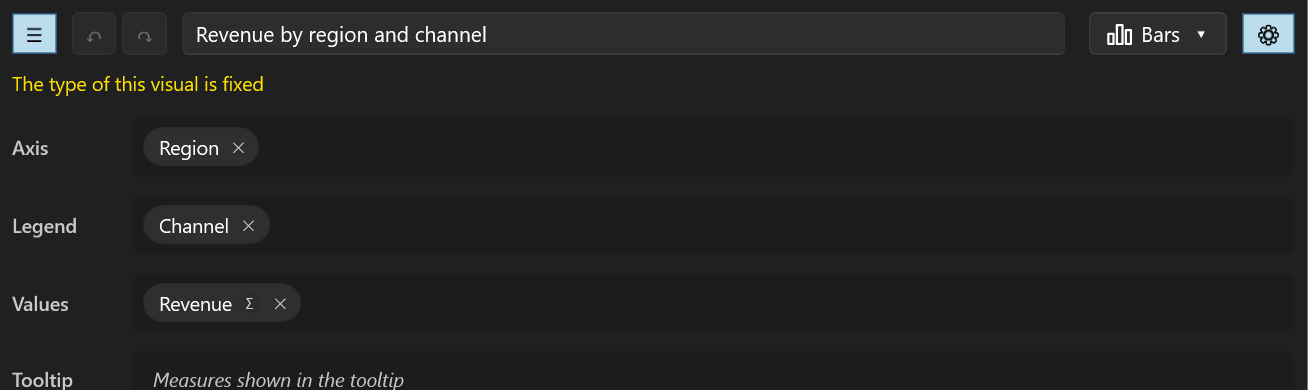
Ready-made rules
Three rules come with EasyBI, declared as behaviors of the designer:
<bi:ReportDesigner Context="{Binding Context}">
    <i:Interaction.Behaviors> <!-- (1)! -->
        <bi:LockVisualTypeBehavior />
    </i:Interaction.Behaviors>
</bi:ReportDesigner>
xmlns:i="http://schemas.microsoft.com/xaml/behaviors"
| Behavior | Refuses | Still allowed |
|---|---|---|
LockVisualTypeBehavior |
Another visual type | Everything else |
LockFieldsBehavior |
Adding, removing or moving a field, in any well | The settings of the fields: aggregation, format, grain, filter values... and the title |
ReadOnlyDesignerBehavior |
Any change | Selecting chips to read their settings |
Each takes an optional Message, shown instead of EasyBI's (translated) one:
<bi:LockFieldsBehavior Message="Ask your administrator to change the fields" />.
Your own rules
A rule is a function: it receives the change and returns null to accept it, or the message of the refusal.
The change is a VisualChange, the visual Before and After it:
| Member | Use |
|---|---|
Before, After |
The whole visuals (VisualDefinition): look at anything. |
Changes(v => ...) |
Whether a part differs, compared by value: change.Changes(v => v.Type), change.Changes(v => v.Filters). |
FieldsChanged |
Whether a field was added, removed or moved, in any well (not its settings). |
The first rule that refuses wins. The rules stay when the designer's Context changes.
Declare it in XAML
Derive from DesignerRuleBehavior to declare a rule in XAML, like the ready-made ones:
Recipes
Only a few visual types
VisualType[] allowed = [VisualType.Bar, VisualType.Line, VisualType.Pie];
designer.Rules.Add(change =>
    change.Changes(v => v.Type) && !allowed.Contains(change.After.Type) ? "Bars, lines and pies only" : null);
The other types stay in the gallery, greyed. To remove them from the gallery of every designer instead, hide them
from the context: context.VisualTypes.Hide(VisualType.Waterfall) (see Custom visual types).
Some fields only for some users
string[] restricted = ["Margin", "MarginRate"];
if (!user.IsInRole("Finance"))
    designer.Rules.Add(change =>
        change.After.Values.Any(v => restricted.Contains(v.Measure)) ? "Margins are for the finance team" : null);
To hide fields entirely, leave them out of the model given to these users.
A title is required
designer.Rules.Add(change => string.IsNullOrWhiteSpace(change.After.Title) ? "Give the visual a title" : null);
The title box comes back to the previous title when the end user empties it.
Filters fixed by the application
What the end user sees
What a rule would refuse is shown before the end user tries it:
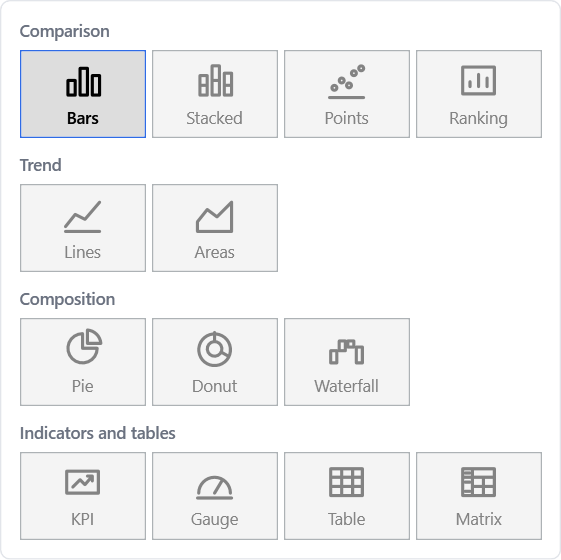
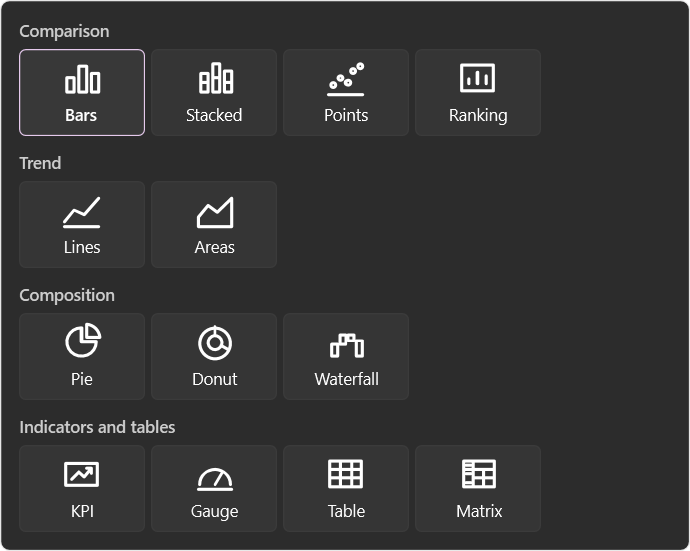
- The gallery greys the refused types; the message is their tooltip.
- A well refuses a dragged field it would not accept, with the message.
- A chip loses its
×when removing it is refused. - A text or a number typed in the properties panel is checked once entered: refused, it comes back to its value, and the message shows above the wells.
Keep rules quick and without side effects
To grey what it would refuse, the designer calls each rule with candidate changes: one per type of the gallery, one per well when a drag starts... A rule must not change anything, nor take time (no database call).
What does not go through the rules
Setting Visual (loading a visual, or null), undo and redo. The rules judge the end user's changes, not the
application's.
Rules or slots?
A rule forbids a change whatever the way the end user makes it, including the ways future versions of the designer will add. A slot only hides a part of the designer. Both go well together: hide the type button to keep the header simple, and lock the type with a rule to be sure.